Search Engine

Custom Search

Friday, October 16, 2009

When I am not at the Ocean


When I am not at the Ocean Wordart.
Thank you Judith! I also loaded the Varsity Alpha in Orange with Black. And the templates were loaded in case you would like to match your local schools.

Come said the wind


Come said the Wind. This was made from the Red Grunge Alpha.

Tuesday, October 13, 2009

Final Frontier


Final Frontier. Our grandchildren love to look through the telescope with grandpa, they usually can't stay up late enough to see anything except the moon. Fortunately, I can still get pictures of them together, doing this. So a visit to NASA and my layouts done. I set up the account at 4share, and think I have the direct linking down!

Monday, October 12, 2009

Touchdown and Scoreboard Template


The Scoreboard is not included in the Elements, it is a template. Download Touch Down. (new link 1/3/11 and thanks for alerting me!)  and Touch Down Scoreboard Template.
  1. To use the Scoreboard template, open the file.
  2. Select the color you wish to use and fill the Background color layer.
  3. Each of the numbers are included, if you prefer to type your stats, click the little eye in the layers palette off, for every number.
  4. Position the number in the appropriate box. To use the number again in another box, click Layer>Duplicate layer. And move it to the needed positon.
  5. When you are finished, be sure to click the eye off for any used numbers.
  6. Click Layer>merge visible and drag into your layout. (Forgot something, click Edit>undo merge visible). Have fun.

Saturday, October 10, 2009

Newspaper Alpha


Newspaper Alpha and the Lower Case w/Numbers.

Friday, October 9, 2009

Varsity Alpha


I will post other colors here, as I make them.
Download Varsity Alpha in Red/ Black.
Download Varsity Alpha in Green/Grey.
Download Varsity Alpha in Blue/Black.
Download Varsity Alpha in Black.
Download Varsity Alpha in Orange/Black.

Thursday, October 8, 2009

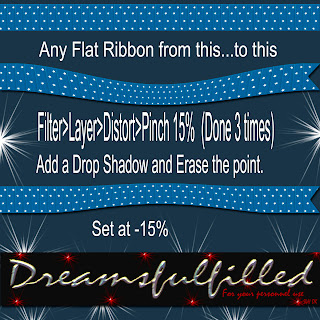
Photoshop Lesson


So I thought we'd start using some of the filters that you have. I have layed out the lesson in the preview. Right click on the mouse, and save image (if you want to keep it on your computer). This takes me about 1 minute, if you are new to the program, maybe 2 or 3 minutes.
  1. First drag any flat ribbon into your layout (the ribbon file won't have enough room to distort the ribbon.)
  2. Click Filter>Layer>Distort>Pinch, in this lesson I have set it to 15%, and click ok. (At the top of the screen).
  3. Repeat this 2 more times, for a total of 3 times.
  4. Select your eraser tool, from one corner click eraser and HOLDING THE SHIFT KEY, click to a center point, and than to the other corner.
  5. Now erase the remaing pixels and you have cut a nice edge in your ribbon.
  6. Add drop shadow and you are finished.